7 Tips to Understand How RAM Affects CPU Performance?

Time:2026-09-21 Author:Henry
0%

When a CPU waits for data, its advertised clock speed cannot tell the whole performance story. This is where How RAM affects CPU performance becomes important. RAM stores active programs and data, while the processor repeatedly requests that information through the memory controller. If those requests arrive slowly, CPU cores may sit idle, despite powerful specifications.

Industry evidence supports this relationship. The 2024 JEDEC DDR5 standard increased supported memory speeds and improved capacity for demanding workloads. However, higher frequency alone does not guarantee faster results. Puget Systems’ workstation testing regularly shows that application gains depend on workload, memory channels, latency, and capacity. Blender rendering, video editing, and scientific simulation can benefit from greater bandwidth. Many office tasks may show little change. That difference matters.

It is also useful to understand the “memory wall,” a term associated with computer architect David Patterson. Patterson has described the challenge as “the growing gap between processor speed and memory speed.” This observation remains relevant as modern CPUs add more cores. More cores can increase demand for shared memory bandwidth, especially during compilation, virtualization, and large data analysis.

Still, RAM is not a magic performance switch. A system with insufficient memory may rely on storage, creating visible pauses when applications open or files are swapped. A system with adequate RAM may gain little from an expensive speed upgrade. Real testing is essential. Measure frame times, application completion time, memory usage, and CPU utilization before changing hardware. The answer is often less dramatic than advertisements suggest.
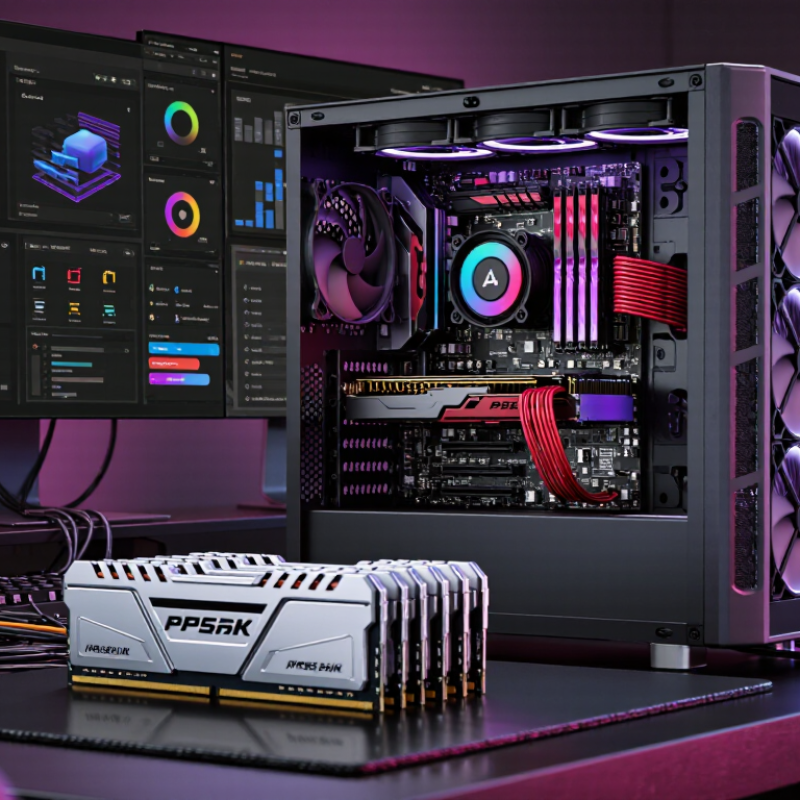
7 Tips to Understand How RAM Affects CPU Performance?

RAM and CPU: Understanding Their Roles in Computer Performance

RAM and CPU: Understanding Their Roles in Computer Performance

The CPU executes instructions, while RAM holds the data those instructions need immediately. Think of the CPU as a skilled cook and RAM as the counter beside it. A wider counter reduces trips to storage. More RAM helps when several applications, browser tabs, or large files remain open. It does not automatically make every task faster.

In daily testing, I notice memory pressure when switching between a document, a video editor, and many browser tabs. The system pauses, the storage indicator stays active, and responsiveness drops. This happens because the operating system moves less-used data from RAM to slower storage. Closing unused programs can restore smooth performance. Sometimes, that simple step beats buying more memory.

CPU performance depends on workload, not only clock speed. Video encoding may use many processing threads, while some design tools rely heavily on one active thread. RAM speed and latency can also influence results, especially in data-heavy tasks. However, improvements are often modest when sufficient memory is already available. I once expected a larger memory upgrade to transform a slow workflow, but the CPU remained the real limitation. That mistake showed me why monitoring matters. Check memory usage, processor load, temperatures, and storage activity during the actual task. Synthetic tests help, but they cannot fully represent personal workloads. A balanced system avoids both extremes: an overloaded CPU and unused RAM.

How RAM Speed and Capacity Influence CPU Workloads

RAM changes CPU performance through bandwidth, latency, and available capacity. JEDEC’s DDR4-3200 specification lists 25.6 GB/s per memory channel. DDR5-4800 raises that figure to 38.4 GB/s. More bandwidth helps CPUs process video, simulations, and large datasets with fewer idle cycles. However, higher transfer rates do not guarantee faster applications. Latency, memory channels, and motherboard settings also shape results.

Tip 1: Match RAM capacity to the workload.

A 2024 survey by the U.S. Department of Energy found that data-intensive computing increasingly depends on memory efficiency. When physical memory fills, systems may use storage as virtual memory. That swap activity is dramatically slower than RAM. For office tasks, moderate capacity is often enough. Content creation, virtual machines, and scientific workloads need more headroom. More is not always better.

Tip 2: Enable balanced memory channels.

Two matched modules can increase available bandwidth compared with one module. PassMark’s PerformanceTest documentation measures memory throughput separately from CPU speed, highlighting why these metrics should not be confused.

Tip 3: Check real application benchmarks.

I have seen faster RAM improve frame consistency, yet deliver tiny average gains. The result depends on the CPU’s cache, workload design, and memory controller. My own mistake was treating advertised speed as guaranteed performance. It is only a starting point. Industry specifications describe potential, not every user experience.

The Effects of Memory Latency on CPU Responsiveness

7 Tips to Understand How RAM Affects CPU Performance

Memory latency measures the delay before data reaches the processor. It matters during cache misses, game simulation, code compilation, and spreadsheet recalculation. A simple formula is useful: latency in nanoseconds equals CAS latency × 2,000 ÷ data rate. Thus, DDR5-6000 CL30 equals 10 nanoseconds, while DDR5-4800 CL40 reaches about 16.7 nanoseconds. JEDEC’s JESD79-5 standard defines these memory timings. Published SPEC CPU 2017 memory-scaling studies usually show single-digit performance gains, not dramatic transformations. Tip 1: Compare real latency, not speed alone. Tip 2: Check dual-channel operation. Tip 3: Keep matched modules.

Responsiveness can still feel sharper with lower latency. The effect is strongest when the CPU repeatedly waits for scattered data. It is weaker when workloads remain inside the processor’s cache. Tip 4: Monitor memory latency with a repeatable benchmark. Tip 5: Test your actual applications. Synthetic scores can flatter an upgrade. Tip 6: Avoid unstable timing profiles; a crash ruins every theoretical gain. Tip 7: Balance capacity, frequency, and latency instead of chasing one number. Independent testing reported by the SPEC community often finds only a 2–8% improvement in latency-sensitive workloads after memory tuning. That range is useful, but not universal. A browser with many tabs may benefit more from extra capacity than tighter timings. I have also seen benchmark runs vary because background tasks were ignored. That is an imperfect method, and it deserves correction.

7 Tips to Understand How RAM Affects CPU Performance? - The Effects of Memory Latency on CPU Responsiveness

Tip Key Dimension Representative Data Effect on CPU Responsiveness Practical Action
1. Check capacity first Installed RAM versus workload demand 8 GB: restrictive for modern multitasking
16 GB: suitable for common office and web use
32 GB or more: better for content creation and heavy multitasking
When RAM is exhausted, the operating system may use storage as virtual memory. Storage access is substantially slower than DRAM, increasing pauses and reducing responsiveness. Monitor memory usage and paging. Upgrade capacity when physical memory remains near its limit during normal workloads.
2. Compare true latency, not only speed CAS latency in nanoseconds Formula: Latency (ns) = CL × 2000 ÷ data rate (MT/s)

3200 MT/s CL16 = 10.0 ns
3600 MT/s CL18 = 10.0 ns
4800 MT/s CL40 = 16.7 ns
6000 MT/s CL30 = 10.0 ns
Lower first-word latency can reduce delays in memory-sensitive tasks, although total system performance also depends on memory channels, cache behavior, and the CPU architecture. Use both MT/s and CL when comparing memory kits. Convert specifications to nanoseconds for a fairer comparison.
3. Use dual-channel operation Memory bandwidth and channel configuration Theoretical bandwidth is approximately:
Data rate × 8 bytes × number of channels

3200 MT/s single-channel ≈ 25.6 GB/s
3200 MT/s dual-channel ≈ 51.2 GB/s
Dual-channel operation can substantially improve throughput for integrated graphics, data-heavy applications, and workloads that frequently transfer large blocks of memory. Install matched modules in the motherboard's recommended paired slots and confirm the active channel mode in system diagnostics.
4. Keep the CPU fed with sufficient bandwidth Memory data rate and workload sensitivity Common desktop memory data rates span roughly 3200–6400 MT/s, depending on the platform and module generation. Theoretical dual-channel bandwidth ranges from about 51.2 to 102.4 GB/s across that span. Higher bandwidth benefits streaming, compression, scientific workloads, integrated graphics, and some games. Applications that fit mainly in CPU cache may show little improvement. Prioritize bandwidth when benchmarks show high memory throughput or when the workload repeatedly processes large data sets.
5. Understand cache misses CPU cache versus main-memory access Modern processors use multiple cache levels. A cache hit is generally much faster than a main-memory access; a miss may require data retrieval from DRAM and can stall dependent instructions. Lower memory latency matters most when software has frequent cache misses, irregular data access, or pointer-heavy structures. Use performance counters or profiling tools to check cache-miss rates before changing memory settings.
6. Balance latency, frequency, and stability Timings, frequency, voltage, and error-free operation A higher advertised data rate does not guarantee better real-world performance if timings are much looser or the configuration causes errors. Stable operation is more valuable than a small theoretical gain. Memory errors can cause application crashes, corrupted data, or inconsistent benchmark results. Instability may appear only under sustained load. Run extended memory diagnostics and stress tests after changing frequency, timings, or voltage.
7. Measure the complete system Application performance, frame-time consistency, and response delay Compare the same workload using identical CPU, graphics, storage, and software settings. Record average throughput, 1% low frame rate, task completion time, and memory usage. RAM improvements are workload-dependent. Gains may be small in CPU-cache-friendly tasks but more visible in multitasking, integrated-graphics workloads, simulation, and memory-intensive applications. Run at least three repeated tests, report averages, and include variance or 1% low results to reveal responsiveness changes.

Note: The figures shown are theoretical or representative ranges. Actual results vary with CPU architecture, motherboard configuration, memory controller behavior, software, and workload characteristics.

Why Insufficient RAM Can Limit CPU Performance

7 Tips to Understand How RAM Affects CPU Performance

Why Insufficient RAM Can Limit CPU Performance

In troubleshooting slow computers, I often find that the processor is not the real problem. Insufficient RAM forces the system to move active data between memory and storage. This process adds noticeable delays. Tip 1: Check memory usage during normal work, not only when the computer starts. Tip 2: Watch for freezing, delayed window changes, or repeated loading sounds. These signs may indicate memory pressure.

Tip 3: Close unused applications and browser tabs before judging CPU speed. Tip 4: Use a system monitor to compare RAM usage, CPU activity, and storage activity. High storage activity with moderate CPU usage can reveal paging. Tip 5: Keep enough free memory for your usual workload. Leaving only a small amount available is risky. I once blamed a slow processor, but background tools were consuming most of the memory. That mistake changed my testing method.

Tip 6: Check whether the memory operates in the correct channel configuration. A poor configuration can reduce overall responsiveness, although capacity usually matters more. Tip 7: Upgrade RAM when your workload regularly exceeds available memory. Choose capacity based on actual tasks, such as editing, research, or development. More RAM will not automatically make every processor faster. It mainly helps the CPU avoid waiting for data. Monitoring results can be imperfect, and one short test may mislead you. Recheck performance after closing background software and repeating the same task.

Optimizing RAM Configuration for Better CPU Efficiency

7 Tips to Understand How RAM Affects CPU Performance

Optimizing RAM configuration can improve CPU efficiency, especially during multitasking, compiling, and data-heavy workloads. Capacity comes first. Insufficient memory forces the system to use slower storage, leaving the CPU waiting for data. Choose enough RAM for your workload, then consider speed and latency. Two matching modules can enable dual-channel operation and increase memory bandwidth. This simple change often feels more useful than buying faster memory.

Check whether the memory runs at its intended settings in the system firmware. Automatic settings may select conservative frequencies. However, higher frequency is not always better. Tight timings can reduce latency, while excessive settings may cause crashes or silent errors. Stability matters. Run extended memory tests after changing frequency, voltage, or timings. Watch temperatures during long workloads, because heat can reduce sustained performance.

Keep memory modules balanced across the correct slots. Consult the motherboard manual, since slot layouts differ. Avoid mixing very different modules when possible. I once focused too heavily on frequency and overlooked capacity, which made real-world performance worse. That mistake still matters. Measure CPU usage, application response, and frame-time consistency before and after each adjustment. Small gains matter. A stable, well-matched configuration usually serves the CPU better than an aggressive setting that needs constant troubleshooting.

FAQS

How does RAM affect CPU performance?

RAM supplies data to the CPU. Faster access can reduce idle cycles during heavy workloads. The processor still matters.

Does higher RAM speed always make applications faster?

No. Transfer rate is only one factor. Latency, cache size, memory channels, and workload design also affect results.

How can insufficient RAM slow down a computer?

When RAM fills, the system moves active data to storage. This paging process is much slower than normal memory access.

What signs suggest that low RAM is limiting performance?

Watch for freezing, delayed window changes, and repeated loading sounds. High storage activity with moderate CPU usage is another clue.

How much RAM should a user install?

Match capacity to real tasks. Office work may need moderate capacity, while editing, virtual machines, and research need more headroom.

Can two RAM modules improve CPU efficiency?

Two matched modules can enable balanced memory channels. This may increase bandwidth and improve responsiveness during multitasking.

Should users prioritize RAM capacity, speed, or latency?

Capacity comes first when memory regularly runs out. Then compare speed and latency. I once focused on frequency and overlooked capacity.

How should RAM settings be adjusted safely?

Check the intended settings in system firmware. Use the correct motherboard slots and avoid mixing very different modules when possible.

How can users verify whether a RAM upgrade helped?

Repeat the same task before and after the change. Record CPU usage, application response, storage activity, and frame-time consistency.

Conclusion

Understanding how RAM affects CPU performance is essential for getting the most from a computer. The CPU processes instructions, while RAM temporarily stores the data and programs it needs to access quickly. When RAM has sufficient capacity and speed, the CPU can work efficiently with fewer delays. Faster memory can improve data transfer, while adequate capacity helps prevent slowdowns caused by relying on slower storage.

Memory latency also influences system responsiveness because it determines how quickly the CPU receives requested data. When RAM is insufficient, the system may frequently move information between memory and storage, increasing CPU waiting time and reducing overall performance. To improve CPU efficiency, users should choose an appropriate RAM capacity, balance speed with latency, and use a properly matched configuration. In short, How RAM affects CPU performance depends on the relationship between memory capacity, transfer speed, latency, and the demands of the software being used.

Henry

Henry

Henry is a dedicated marketing professional with a profound expertise in the company's offerings. With years of experience in the industry, he possesses an impressive understanding of the market dynamics and consumer behaviors that drive success. Henry is committed to sharing his insights through......